

♥ Wishlist
Compare 29 verified Computer Monitors for Work, Gaming and Everyday Use products in United Kingdom. Reviews, ratings, pros, cons and buying advice updated for November 2026.


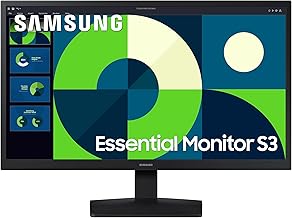


Choosing the right monitor is about much more than screen size. The best display for a home office may be completely unsuitable for competitive gaming, photo editing or professional video production. Resolution, panel technology, refresh rate, response behaviour, connectivity, colour performance, ergonomics and the way a monitor interacts with your computer all affect the buying decision.
This independent buying guide explains the main monitor specifications in practical terms so you can compare products more intelligently. Rather than focusing on a single specification, consider how the entire display fits your computer, desk, software, games and everyday workload.
Popular monitor manufacturers include Dell, LG, Samsung, ASUS, Acer, AOC, BenQ, Philips, MSI and Lenovo. However, brand reputation alone does not determine whether a particular monitor is right for you. Two displays from the same manufacturer can be designed for completely different users, so always compare the individual specifications, features and intended use.
A good monitor should provide the right combination of screen size, resolution, panel quality, refresh rate, connectivity and ergonomic adjustment for the work or entertainment you actually do.
Monitors are often categorised by their panel technology, intended use and physical design. Understanding these categories makes it easier to narrow down the large number of products available.
IPS panels are popular because they generally provide wide viewing angles and strong colour reproduction. They are suitable for office work, general computing, creative applications and gaming, depending on the particular model.
IPS is not automatically synonymous with professional colour accuracy. Individual displays can differ considerably in calibration, gamut coverage, contrast and uniformity. If colour-critical work matters, examine the manufacturer's detailed specifications rather than choosing solely because a monitor uses an IPS panel.
VA panels are commonly chosen when stronger contrast is important. Their ability to produce deeper blacks can make films, games and dark content more visually convincing than many conventional LCD alternatives.
VA displays can also be attractive for general-purpose use because they are available across a wide range of sizes and resolutions. However, response behaviour can vary between models, particularly during transitions involving dark shades. Gamers should therefore consider measured or independently verified response performance rather than relying only on the headline refresh-rate specification.
TN technology has historically been associated with fast gaming displays and relatively straightforward hardware designs. Modern alternatives have reduced its dominance, particularly where wide viewing angles and colour quality are important.
A TN monitor can still make sense for a buyer whose priorities strongly favour fast gaming performance and who is less concerned about colour reproduction or viewing-angle performance.
OLED monitors use self-emissive pixels rather than a conventional backlight. This allows individual pixels to switch off for very deep blacks and can produce exceptionally high perceived contrast.
OLED displays can be particularly attractive for gaming, films and visually demanding applications. However, buyers should understand the characteristics of the specific OLED technology and model, including brightness behaviour, power consumption, text rendering characteristics and the manufacturer's guidance regarding long-term static content.
If your working day involves static application interfaces, spreadsheets or browser windows for many hours, investigate the manufacturer's burn-in mitigation features and warranty terms before choosing an OLED monitor.
Resolution determines the number of pixels used to create the image. Higher resolution can provide greater image detail and more usable workspace, but it also increases the graphics processing demand for games and some professional applications.
Full HD remains useful for everyday computing, smaller displays and systems where affordability or lower graphics requirements are important. At larger screen sizes, however, the relatively low pixel density can make text and fine interface elements appear less refined than on higher-resolution alternatives.
1440p is a popular middle ground between Full HD and 4K. It provides noticeably more workspace and detail than 1080p without placing the same graphics workload on a gaming PC as a 4K display.
For many desktop users, a 27-inch QHD monitor offers a particularly useful balance between screen size, pixel density and practical desktop space.
4K provides a substantial increase in pixel count and can produce highly detailed images and crisp text when paired with an appropriate screen size and operating-system scaling.
4K can be especially useful for detailed creative work, high-resolution photography, video editing and users who prefer a large amount of desktop workspace. Gaming at 4K, however, requires considerably more graphics performance than gaming at lower resolutions.
Higher-than-4K displays are aimed at users who value exceptional pixel density and extensive workspace. They can be useful for professional creative applications, detailed design work and high-resolution workflows.
Before purchasing a high-resolution monitor, check whether your computer and graphics hardware can drive the display at the desired resolution and refresh rate through the available connection.
Screen size should be considered together with resolution and viewing distance. A larger monitor is not automatically better if your desk cannot accommodate it comfortably or the resolution is too low for the physical size.
24-inch monitors are practical for compact desks, home offices and straightforward computing. A Full HD display can work well at this size, particularly for everyday productivity.
27 inches is one of the most versatile monitor sizes. It provides substantially more workspace than a typical 24-inch display without requiring the desk depth of an extremely large screen.
A 27-inch monitor is available across Full HD, QHD and 4K categories, although higher resolutions generally provide a more refined desktop experience at this physical size.
A 32-inch display provides a larger working area and can be excellent for productivity, creative applications, gaming and entertainment. Desk depth becomes increasingly important, particularly if the monitor has a large stand or a curved panel.
Ultrawide displays replace the conventional 16:9 format with a wider aspect ratio. They can be particularly useful for multitasking because multiple applications can remain visible without requiring two separate monitors.
They are also popular with racing games, simulation titles and cinematic content. However, compatibility varies between software and games, so check the applications you use most frequently.
Refresh rate describes how frequently the display can update the image. It is normally expressed in hertz, such as 60Hz, 75Hz, 120Hz, 144Hz, 165Hz, 240Hz or higher.
A higher refresh rate can make movement appear smoother, particularly during gaming and fast scrolling. The benefit is most noticeable when the computer can consistently produce enough frames to take advantage of the display's refresh capability.
Do not select a monitor purely because it has the highest advertised refresh rate. A high refresh rate paired with poor motion handling, unsuitable resolution or inadequate graphics hardware may not provide the overall experience you expect.
Response time refers to how quickly pixels change between states. It is often presented in milliseconds, but the number printed on a product page does not tell the entire story.
Manufacturers may use different measurement methods and marketing terminology. Technologies such as overdrive can alter pixel response behaviour, but excessive overdrive may introduce visible artefacts such as inverse ghosting.
For gaming, consider the complete motion-performance picture: refresh rate, response behaviour, overdrive implementation, adaptive synchronisation and the frame rates your graphics hardware can actually deliver.
Adaptive synchronisation technologies allow the monitor's refresh behaviour to respond dynamically to the graphics card's frame output. This can reduce tearing and improve perceived smoothness when frame rates fluctuate.
AMD FreeSync and NVIDIA G-SYNC are commonly encountered in gaming monitors, while compatibility can depend on the monitor, graphics card, connection and driver configuration.
Before buying a gaming display, check the precise compatibility information rather than assuming that every adaptive-sync feature works identically with every graphics platform.
HDR, or High Dynamic Range, is intended to provide a wider range between dark and bright areas while supporting appropriate colour reproduction. However, the presence of an HDR label alone does not guarantee a dramatic HDR experience.
Brightness capability, local dimming, contrast performance, black levels, colour gamut and the quality of the panel all influence HDR performance.
For serious HDR viewing, investigate the monitor's actual brightness capability and backlight or pixel-level control rather than treating HDR support as a simple yes-or-no feature.
Colour specifications are particularly important for photographers, graphic designers, video editors and other creative professionals.
Common colour-space references include sRGB, DCI-P3 and Adobe RGB. They describe different colour gamuts rather than representing a simple quality ranking.
Coverage and accuracy are different concepts. A monitor may support a wide gamut but still require calibration for colour-critical work. Look for information about factory calibration, colour accuracy, calibration compatibility and uniformity when these factors matter professionally.
Brightness is normally specified in nits. A higher brightness rating can be useful in bright rooms and for HDR applications, but maximum brightness is not necessarily the best setting for comfortable office work.
Contrast describes the relationship between the brightest and darkest portions of an image. Native panel characteristics and local dimming can have a major influence on perceived contrast.
For a home office, consider your actual room lighting. A monitor that is excessively bright for your environment may be uncomfortable, while insufficient brightness can make the image difficult to view in strong daylight.
Glossy screens can provide a vivid, clear-looking image, but reflections can become distracting when the monitor faces windows, lamps or other bright light sources.
Matte or anti-glare finishes are often more practical for offices and brightly lit rooms because they reduce distracting reflections. The trade-off is that aggressive anti-glare coatings can affect perceived image clarity or sparkle on some displays.
Think about where the monitor will physically sit before deciding which finish is preferable.
Curved displays can make a large or ultrawide screen feel more immersive and can bring the outer portions of a wide panel closer to the user's natural viewing position.
Flat monitors remain highly practical for office work, design, coding and general computing. A curved panel is therefore a preference and use-case decision rather than an automatic upgrade.
Connectivity is one of the most frequently overlooked parts of a monitor purchase. The ports determine which computers and accessories can be connected and at what resolution and refresh rate.
HDMI is widely used across desktop computers, laptops, games consoles and other consumer equipment. Different HDMI versions have different capabilities, so check the exact specification of both the monitor and source device when high resolution or high refresh rates are required.
DisplayPort is common on desktop graphics cards and many computer monitors. It is particularly important for PC gaming and high-resolution, high-refresh-rate configurations.
USB-C can be extremely useful with compatible laptops because a single cable may handle display output, data and power delivery on supported monitors.
Do not assume that every USB-C port provides identical functionality. Check whether the monitor supports video input, data transfer, charging and the required power-delivery level.
A monitor with integrated USB ports can reduce desk clutter by allowing peripherals such as keyboards, mice or storage devices to connect through the display.
Some monitors provide headphone outputs or integrated speakers. These features can be convenient, although users who prioritise audio quality may still prefer dedicated headphones, speakers or a separate audio interface.
USB-C monitors can be particularly attractive for people using modern laptops. A suitable display can potentially act as a central desktop connection point, reducing the number of cables required each time the laptop is connected.
Before buying, check three things separately: whether the USB-C port accepts video, how much power it can deliver and whether the USB hub provides the data speeds you need.
For a demanding laptop workstation, also consider whether the monitor provides enough charging power for the laptop under normal workload. A display that charges a lightweight laptop adequately may not provide enough power for every high-performance system.
Integrated speakers can be convenient for video calls, system sounds and occasional media playback. However, speaker quality varies significantly between monitors.
If audio is an important part of your setup, treat monitor speakers as a convenience feature rather than assuming they will replace a dedicated audio system.
Some modern monitors incorporate webcams, microphones or privacy features aimed at hybrid working and video conferencing.
These can simplify a workspace, but buyers should still examine camera resolution, microphone design, privacy controls and software compatibility if video conferencing is a major part of their working day.
A monitor can have excellent image quality and still be a poor choice if it cannot be positioned comfortably.
Look for an adjustable stand when possible, particularly height adjustment. Tilt, swivel and pivot support can also be valuable depending on your desk arrangement.
VESA mounting allows compatible monitors to be attached to suitable monitor arms or mounting systems.
Check the exact VESA pattern, monitor weight and mounting requirements before purchasing an arm. A large ultrawide or heavy professional monitor may require a substantially stronger mounting solution than a compact office display.
A monitor arm can also improve desk space and positioning flexibility, particularly in multi-monitor setups.
Two monitors can provide more practical workspace than one display, particularly for office work, programming, research and content creation. One screen can display the primary application while the other remains available for references, communications or secondary tools.
An ultrawide monitor can provide a similar wide workspace without the physical gap between two panels. The better choice depends on software compatibility, desk space, personal preference and whether independent screens are useful to your workflow.
Office users should look beyond refresh rate and gaming-oriented specifications. Long working sessions place greater importance on text clarity, ergonomics, viewing comfort and workspace.
Consider a display with:
A home-working monitor should fit naturally into the physical environment. Measure the available desk width and depth before selecting a large display.
USB-C connectivity can simplify laptop docking, while an adjustable stand can make a substantial difference to positioning. If you regularly work with spreadsheets, documents and multiple browser windows, additional horizontal or vertical workspace may be more useful than an extremely high refresh rate.
Programming benefits from sharp text, generous workspace and flexible positioning. A high-resolution 27-inch or larger monitor can make code easier to arrange, while an ultrawide display can be useful for keeping an editor, terminal and documentation visible simultaneously.
Vertical orientation can also be valuable for viewing long source files and documentation. If you prefer portrait mode, confirm that the monitor stand supports pivot adjustment or budget for a suitable VESA arm.
Graphic designers should prioritise colour performance over headline gaming specifications. Important considerations include colour gamut, colour accuracy, calibration support, viewing angles, uniformity and resolution.
Professional workflows may also require a particular colour space or connection standard, so identify the requirements of your software and print or digital output before choosing a display.
Photo editing requires a display capable of showing subtle differences in tone and colour. A wide-gamut monitor can be valuable, but gamut alone is not enough.
Consider factory calibration information, calibration compatibility, uniformity and the colour space used by your workflow. A calibrated monitor can also help maintain consistency when moving images between devices.
Video editors often benefit from a large, high-resolution workspace that can accommodate timelines, preview windows, editing tools and media browsers.
Colour performance becomes particularly important when working with colour-managed footage. Depending on the workflow, HDR capability, wider-gamut support and accurate calibration may also be significant.
Gaming monitors should be selected according to the type of games you play and the capabilities of your gaming system.
A common buying mistake is selecting the highest resolution and refresh rate combination without considering the graphics card.
For example, a high-refresh 4K monitor may be an excellent display, but the computer needs sufficient graphics performance to produce the frame rates necessary to take advantage of that refresh rate.
For many PC gamers, QHD can offer an attractive compromise between image detail and performance requirements. Competitive players may prefer lower resolutions with extremely high refresh rates, while visually focused players may prioritise 4K image quality.
Console buyers should check the monitor's HDMI specification, supported resolutions and refresh rates rather than relying on a general gaming label.
Also consider whether the monitor supports the console features you actually intend to use. A monitor designed primarily around PC gaming may offer features that provide little benefit to a particular console configuration.
Ultrawide monitors are particularly attractive for multitasking and immersive gaming. Their main advantage is horizontal workspace.
Before buying one, consider:
The aspect ratio describes the relationship between screen width and height.
When comparing resolutions, remember that two monitors can have the same total pixel count but different aspect ratios and therefore provide different working areas.
Pixel density describes how many pixels are packed into a given physical area. Higher pixel density generally allows finer details and sharper text, although operating-system scaling and application support also influence the practical experience.
A very high-resolution monitor can therefore be excellent for text clarity, but only if your operating system and software handle scaling properly.
High-resolution monitors are commonly used with display scaling so that interface elements remain comfortably sized. Windows can scale applications and text, although older or poorly optimised software may not behave perfectly.
When comparing a 4K display with a lower-resolution alternative, consider not only the pixel count but also how you prefer to use your desktop and applications.
Eye comfort is influenced by many factors, including viewing distance, room lighting, brightness, reflections, text size and how long you work without breaks.
Features such as flicker reduction and low-blue-light modes can be useful preferences, but they should not be treated as substitutes for sensible monitor positioning and appropriate viewing habits.
A monitor should be positioned so that you can view it comfortably without repeatedly leaning forwards, tilting your head or working against strong reflections.
Monitor specification sheets can appear complicated because manufacturers list numerous technical measurements. The most useful approach is to compare specifications according to your intended use.
Use the following checklist when comparing products:
A 240Hz monitor is not automatically better for every buyer. If you primarily edit documents, browse websites and watch films, other characteristics may provide greater practical value.
4K can provide excellent image quality, but gaming at native 4K can be demanding. Check your graphics hardware before committing to a high-resolution gaming display.
A fixed stand can become frustrating when the display cannot be positioned at a comfortable height. If the monitor will be used for many hours, ergonomics should be part of the buying decision.
USB-C is a connector format, not a guarantee of identical functionality. Check whether the port supports display output, charging and data transfer.
HDR performance depends on more than software compatibility. Brightness, contrast, local dimming or OLED pixel control and colour performance all matter.
A 32-inch or larger monitor can occupy considerably more physical space than its diagonal measurement initially suggests. Measure your desk before buying.
Very high resolutions may require scaling. Check how your operating system and frequently used applications handle the chosen resolution.
Professional colour features can be valuable for the right workflow but may add cost and complexity without providing a meaningful benefit to a casual user.
There is no universal price point at which a monitor becomes good or bad. The sensible budget depends on the features that matter to your workload.
A basic office user may gain more from spending money on ergonomics, resolution and connectivity than from paying for an extreme gaming refresh rate. A competitive gamer may reasonably prioritise refresh rate and response performance. A creative professional may obtain more value from accurate colour reproduction and calibration support.
When comparing prices, identify the specifications that genuinely affect your work before paying for premium features that you may never use.
This depends on your workflow. Two monitors can provide independent windows and flexible layouts, while one high-quality ultrawide or large-format display creates a continuous workspace.
Two screens can also offer redundancy and make it easier to dedicate one display to communications or reference material. A single monitor can produce a cleaner desk and eliminate the central bezel found between two conventional panels.
Measure the desk first. Consider width, depth and the distance between your eyes and the screen.
A 24-inch or 27-inch display may be easier to accommodate than a large ultrawide. A VESA monitor arm can also reduce the space occupied by a bulky stand, provided the monitor and arm are compatible.
A larger desk provides more flexibility for 32-inch displays, ultrawide monitors and multi-monitor arrangements. However, do not assume that maximum screen size is automatically the best solution.
Con